Subscribe To Our Newsletter
Get notified about news, webinars and more.

Make every day more productive and profitable
Help
Help CentreMake every day more productive and profitable
Help
Help Centre
Address Lookup Guide
Recently, our default address lookup provider was deprecated, so all Squeegee accounts now use Google’s address lookup. This guide will help you get the correct pin for your jobs and customers.
1. Entering the Address Correctly
To get an accurate pin suggestion:
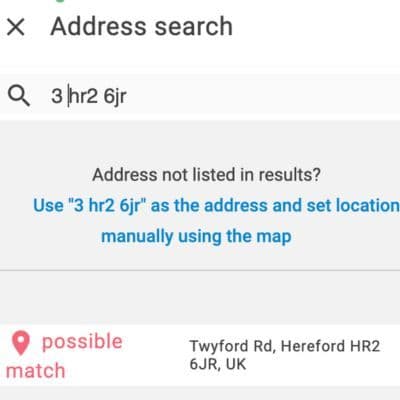
⚠️ Important:
2. Look for the Green Pin
The green pin suggestion is what you’re looking for—it represents the accurate address match.
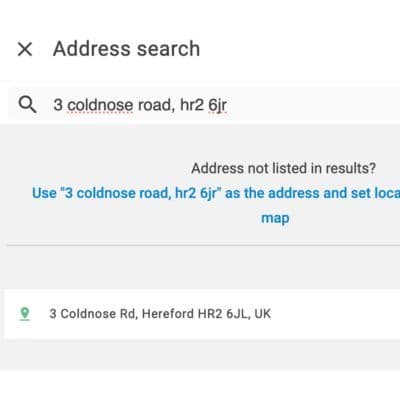
3. Adjusting or Confirming the Pin
Even with the green pin, you can make adjustments:
Following these steps ensures your jobs and customers are accurately mapped every time.